Phishing emails used to give themselves away. Bad grammar, sketchy domains, generic greetings – these were reliable red flags for years. That era is ending. Attackers now use the same AI tools the rest of us do, and their emails have become polished, personalized, and disturbingly convincing.
A phishing email today might read better than a legitimate marketing message. The domain might be one character off from the real thing. The sender’s display name might match someone you trust while the actual address belongs to a throwaway account.
We built our courses to teach you how to recognize these attacks. But training alone isn’t enough when you’re sorting through dozens of messages before your first coffee. You need something watching alongside you. That’s what Vervain was built to do – to complement the skills you learn here and make phishing attacks as close to useless as possible.
What is Vervain?
Vervain is a free, open-source Chrome extension designed specifically for Gmail. It runs quietly in the background, analyzing incoming emails for signs of phishing and social engineering.
At its core, Vervain performs two kinds of detection. First, it monitors sender domains for lookalikes. If someone sends you an email from “arnazon.com” instead of “amazon.com,” or swaps in a character from another alphabet that looks identical to the real one, Vervain catches it. These small tricks are easy to miss when you’re scanning your inbox quickly, but the extension checks every sender automatically.
Second, it detects contact impersonation. If an email uses a trusted name but the email address behind it doesn’t match, Vervain surfaces a warning. This catches one of the most common tactics: using a familiar name to create false trust.
All warnings appear inline, directly inside Gmail, right where you’re reading. No separate dashboard, no notifications to chase down.
New: AI-Powered Email Analysis
The latest addition to Vervain is an AI analysis feature that goes well beyond domain and sender checks. When you open an email in Gmail, a small “VERIFY my suspicion” button appears next to the sender information. One click sends the email content to an AI model for a thorough phishing assessment.
The analysis is built on the PUSHED+VERIFY framework, a systematic method we developed here at Blue Security Ops for evaluating whether a message is trying to manipulate you. The AI applies both halves of the framework to every email it reviews.
PUSHED catches emotional manipulation. The model looks for six tactics:
- Pressure – demands for immediate action
- Urgency – artificial time constraints
- Surprise – unexpected or out-of-context requests
- High-stakes – threats of account closure, legal action, or financial loss
- Excitement – too-good-to-be-true offers
- Desperation – pleas for help designed to exploit empathy
These are the psychological levers phishing relies on, and the AI identifies them even when they’re subtle.
VERIFY is the validation process – the steps you’d take yourself, automated by the AI:
- View Carefully – examine who’s actually contacting you, not just the display name
- Evaluate Context – does this message make sense given what you know?
- Request Examination – what exactly are they asking you to do, and is it normal?
- Interrogate Action – challenge the urgency, ask why this can’t wait
- Freeze Action – stop before you act, especially on links, attachments, or sensitive requests
- Your Instincts Matter – if something feels off, it probably is
The AI applies these steps by checking the sender domain, looking for reply-to mismatches, evaluating links, flagging sensitive requests, and assessing the overall tone and branding of the message.
After running both analyses, Vervain returns a confidence score from 0 to 100 along with a risk label: safe, caution, or suspicious. The results appear in a collapsible panel directly inside Gmail, right below the email header. Each finding comes with specific evidence pulled from the email, so you can see exactly what triggered each flag and why. It’s not a black box giving you a number – it shows its reasoning, and you can collapse the panel when you’re done reviewing.
Vervain supports both Anthropic Claude and OpenAI GPT models. You choose your provider and model in the settings, and you bring your own API key. There’s no intermediary service sitting between you and the AI provider. Your key, your choice of model, your data flowing directly to the provider you selected. Nothing else is in the loop.
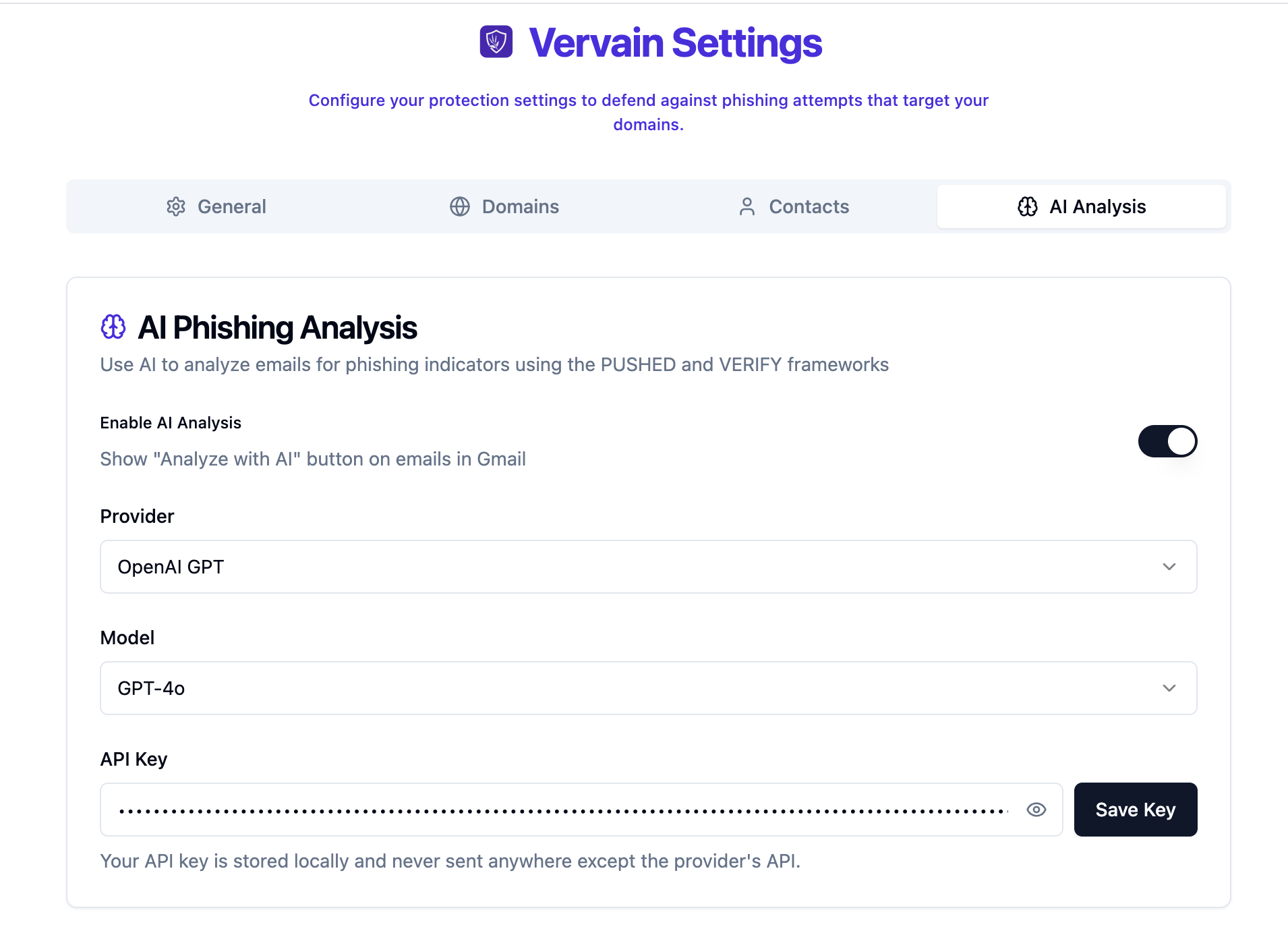
The settings screenshot shows the AI Analysis tab with a toggle to enable the feature, provider dropdown (Anthropic Claude or OpenAI GPT), model selection, and API key field. Note the message: “Your API key is stored locally and never sent anywhere except the provider’s API.”
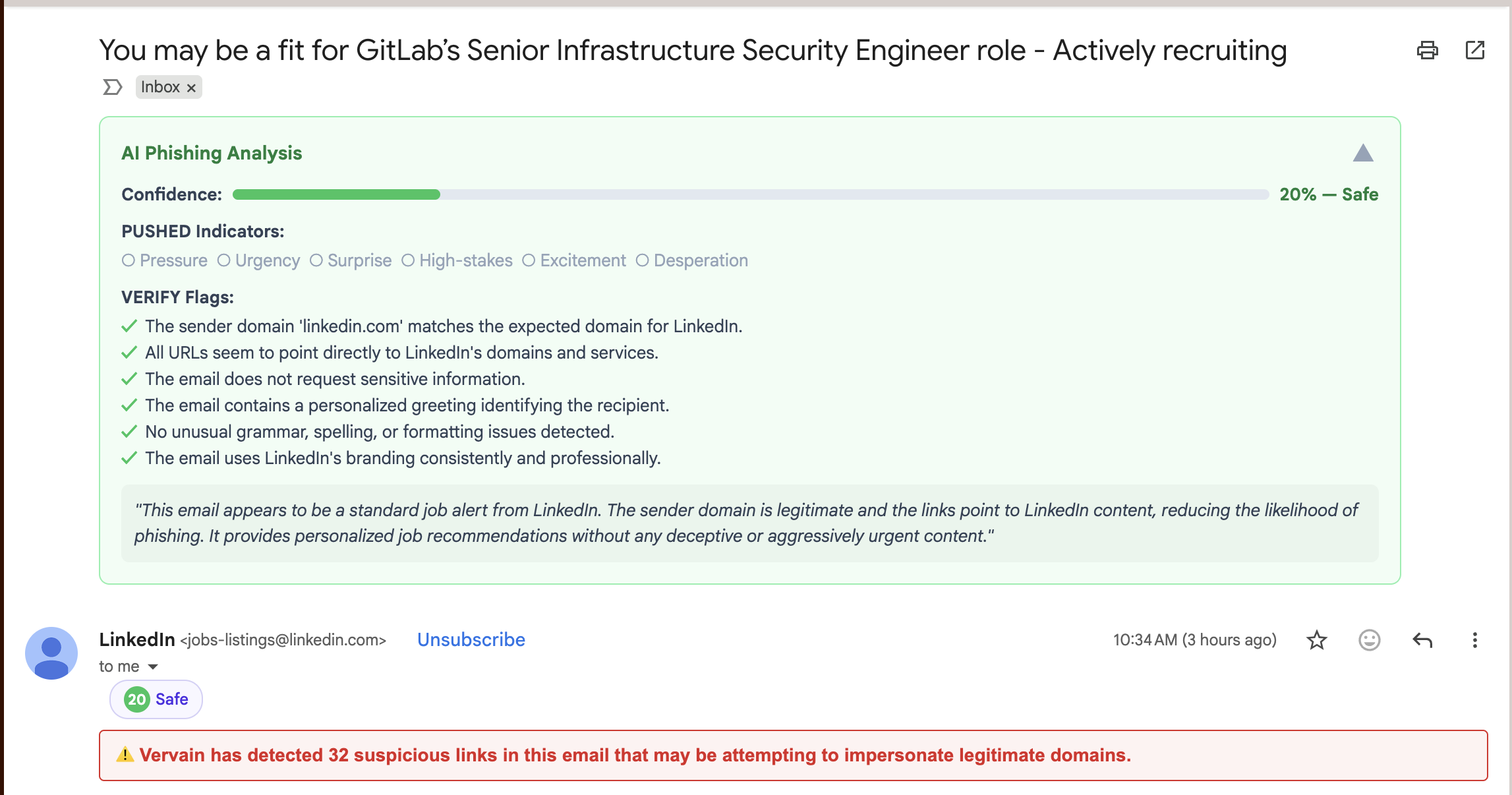
A real LinkedIn job alert scored 20% confidence (Safe). All PUSHED and VERIFY indicators are clear, with specific evidence shown for each flag.
Your Data is Yours
This is a core principle: your email data is your property, not ours. Vervain is built around that belief.
The extension is purely local. There are no external servers, no backend, no data collection of any kind. Domain monitoring and impersonation detection happen entirely in your browser – nothing leaves your machine. The only time Vervain makes an external call is when you choose to analyze an email with AI, and even then it’s your API key, on your machine, calling the provider you selected. We never see your data.
No analytics. No telemetry. No tracking.
And because Vervain is open source, you don’t have to take our word for it. Anyone can read the code and verify that it does exactly what it claims. Transparency isn’t a feature – it’s the foundation.
Try Vervain
Vervain is free and open source, available on GitHub: Vervain on GitHub.
To install it, clone or download the repository, run npm run build to compile the extension, then open Chrome’s extension management page (chrome://extensions), enable Developer Mode, and click “Load unpacked” pointing to the build output directory. From there, open Gmail and the extension starts working immediately. Domain monitoring and contact impersonation detection run automatically. To use the AI analysis feature, head to the extension’s settings, open the AI Analysis tab, choose your provider, and add your API key.
If you run into issues, have ideas for improvements, or want to contribute, the GitHub repository is the place to do it. Open an issue, submit a pull request, or start a discussion. Phishing emails are only going to get better. Your inbox defense should keep up.